1. About this platform
This is the officer portal for the ECOWAS Brown Card Scheme — the claims platform that member countries, National Bureaux and insurers use to take claims, capture evidence to an evidentiary standard, and give regulators oversight of the whole scheme. This deployment is operated by ECOWAS BROWNCARD PS.
Cover is resolved, never owned. The policies you see are a mirror of the register that issued them; a claim records what that register said and when. The platform is role-based: what you can see and do depends on your role and your institution, so your workspace only ever shows the parts your role is permitted to use. Where a screen below is missing for you, your role does not carry that permission, or the feature is not enabled here.
2. Getting started
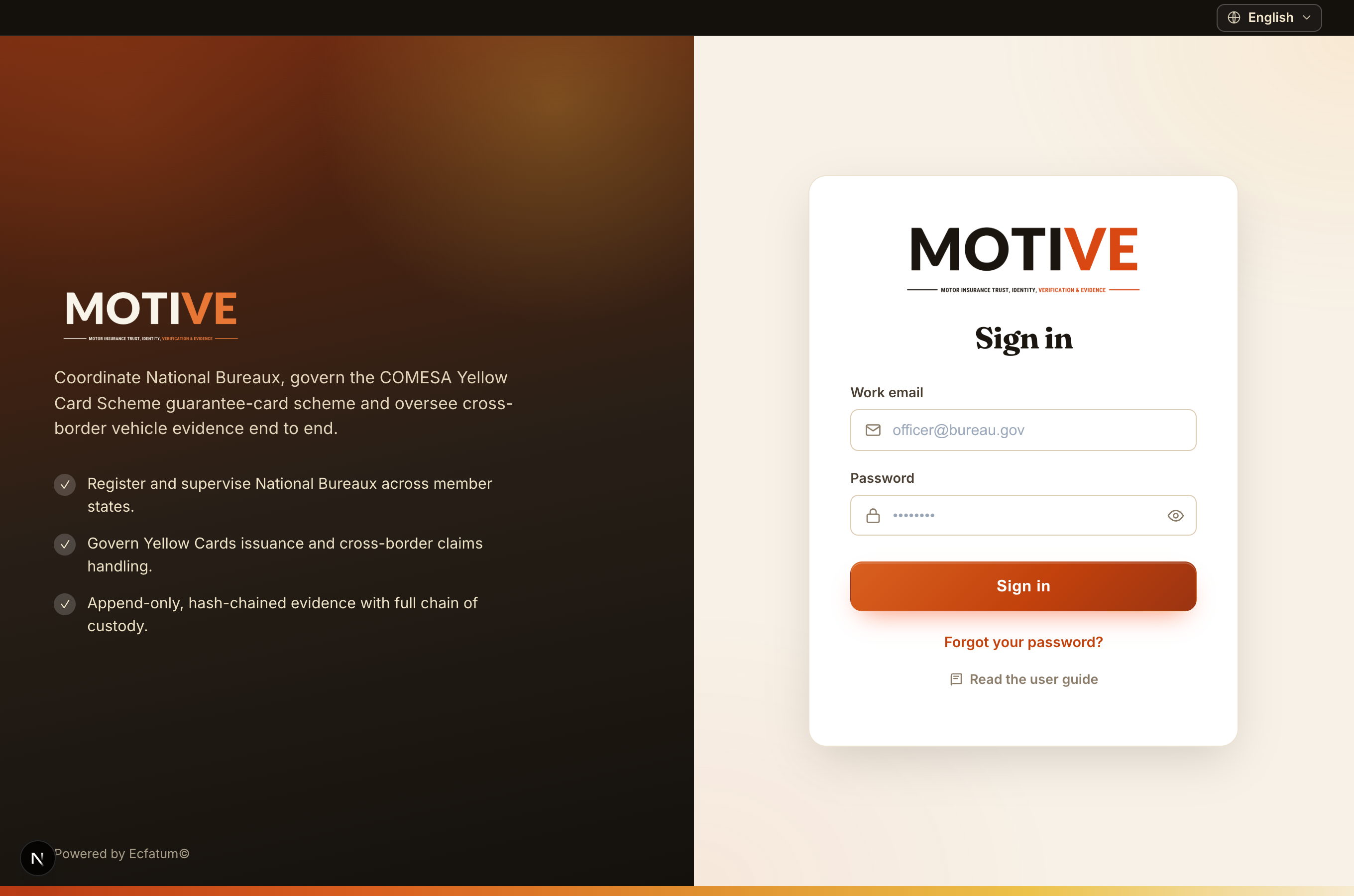
- Sign in with your work email and password at the portal login page. Your session is held in a secure, http-only cookie. If your account requires two-factor authentication, you enter a one-time code after your password.
- Accounts are created for you by an administrator at your institution, who emails you an invitation or set-password link — you do not self-register.
- Forgotten password — use the “Forgot your password?” link on the login page; a reset link is emailed to you. A locked-out account is re-enabled by your institution admin.
- Security & language — from the avatar menu → Profile you can change your password, enable two-factor authentication, and set your interface language (English, French, Portuguese).
- Go to the portal login page (your administrator sends you the link).
- Enter your work email and password.
- If two-factor is enabled, enter the one-time code from your authenticator app or SMS.
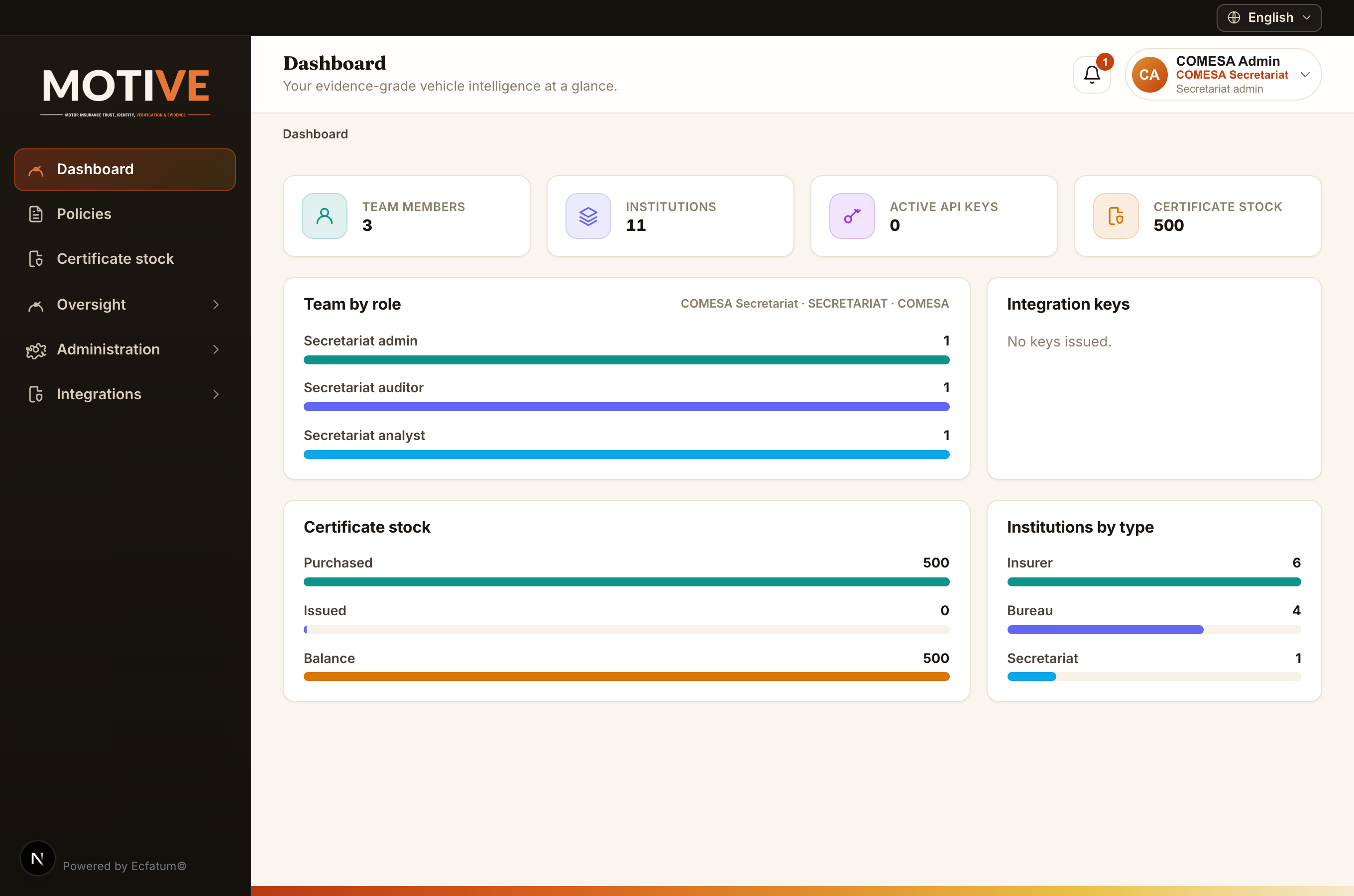
- You arrive at your dashboard — the home workspace for your role.
3. Finding your way around
- Left sidebar — your navigation, grouped into pillars, plus — for admins — an Administration & Integrations area. It only lists the screens your role can open, so your pillars match your job.
- Workspace — every role lands on a home workspace suited to its job. Users who wear more than one hat get a workspace switcher in the top bar.
- Top bar — page title and breadcrumb on the left; the notifications bell and your avatar on the right. The avatar menu holds Profile, this guide, and Sign out.
- Registers open search-first: set filters (date, country, institution, status), press Find/Load, then page through the results.
4. Institutions & how they fit together
The scheme is a hierarchy of institutions, each isolated from its peers:
- ECOWAS Secretariat — the scheme apex. Oversees every institution, sets the scheme settings, and reads the whole scheme’s data.
- National Commission (regulator, where present) — supervises the insurers in its country.
- National Bureau — the country’s bureau within the scheme, and its border authority.
- Insurance company — handles claims and captures vehicle evidence. Insurers never see each other’s data.
Visibility follows the tree. You read your own institution and everything beneath it, never institutions beside you. Writing is always own-institution only — an administrator creates the institutions directly below them and their first admin, who then manages their own staff.
A register connects directly. Policies arrive from whichever register issued them — a secretariat, a commission or a regulator — over the integration API, naming the insurance company on each record. No member insurer has to exist here first for its policies to arrive.
5. Every role at a glance
Roles are scheme-neutral and grouped by institution. Each carries a fixed ceiling of permissions; an administrator can narrow a person further with a role profile.
Secretariat (apex oversight)
- Secretariat Admin secretariat — provisions national commissions and bureaux, manages secretariat staff and the scheme settings.
- Secretariat Analyst secretariat — scheme-wide oversight: reads the registers, reviews AI results, corrects plate reads, confirms vehicle matches, runs reports and places legal holds.
- Secretariat Auditor secretariat — read-and-attest: inspects the audit ledger and custody chain, places legal holds, exports evidence.
- Claims Adjuster secretariat — takes and handles claims at the apex, where a scheme settles cross-border cases centrally.
Any institution
Everyone can see the claims book; few can act on it. Every role reads Claims — this is the claims platform, and a person who cannot open the book cannot answer the first question anyone asks them. Opening, assessing, deciding and settling stay with the Claims Adjuster and the supervisors who review them, so for most people the book is read-only. A Claims Adjuster can sit at an insurer, a bureau, a commission or the secretariat: the role decides, not the institution.
- Integration Developer any institution — connects a register to this platform: issues its own test and live integration tokens, pushes batches, and reads the policies and vehicles that arrive to check them. Carries nothing else — no staff management, and no power to act on a claim.
6. Administration & user management
Who: Platform Admin, and every institution’s Admin role.
- Create institutions — the Platform Admin creates the top-level institutions; each institution admin then registers the institutions directly beneath them and assigns each its first admin.
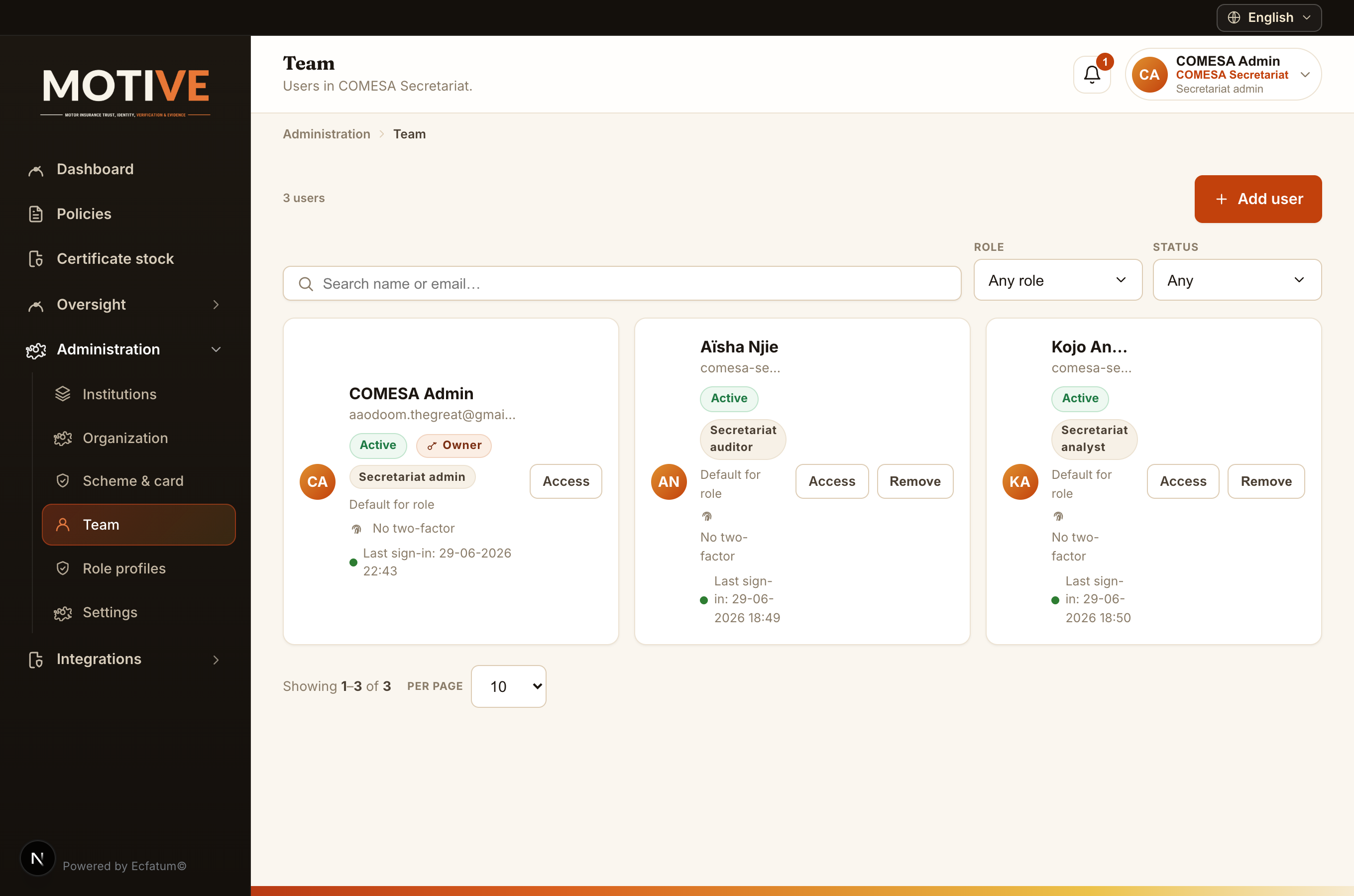
- Manage your team (Administration → Team) — invite staff, assign roles, reset passwords and deactivate leavers. You only ever manage your own institution’s users.
- Role profiles — define a narrowed set of permissions and apply it to a person, so you can grant less than a role’s full ceiling.
- Institution settings — your name, logo, branding, contact details, default language, two-factor (SMS) provider and AI/detection settings.
- Open Administration → Team in the left sidebar.
- Click Add user (top right).
- Enter the person’s name, work email and role, then save.
- They receive an email invitation with a link to set their password.
- To revoke access later, open their card and choose Remove.
7. The policy register
Who: everyone who handles a claim; oversight roles read it scheme-wide.
Policies are not written here. They live in the register that issued them — a secretariat, a commission or a regulator — and reach this platform as a mirror, so a claim can resolve the cover it is made against. Nothing in the portal creates a policy.
- Register (Policies) — search by policy number, insured name or registration, and filter by status, cover and insurer. Every row opens.
- Insurer — the company that wrote the cover, as the register named it: name, its code, and the member state whose register it belongs to.
- Where it came from — each policy says which integration token pushed it, what the register last said, and when this platform recorded it.
- Age is a fact about the connection — a mirrored policy carries its provenance and its age wherever it is shown. A stale mirror tells you about the link to the register, never about the cover itself.
- Open Policies and search by policy number, insured name or registration.
- Narrow by insurer — the list offers the companies the register has actually named.
- Open a policy to read its cover, the insurer behind it, and where it came from.
8. Claims handling
Who: Claims Adjuster (Supervisor reviews).
- Report an incident (FNOL) — open a claim against a policy, with incident photos captured on the spot or uploaded.
- Assess — compare the incident evidence against the vehicle’s baseline, including the AI damage report.
- Decide & settle — set reserves, then approve, settle (authorise payment) or decline, all as append-only records.
- Open Claims → Report incident (FNOL) and select the policy.
- Capture or upload the incident photos.
- Compare the incident evidence against the baseline (with the AI damage report) and set a reserve.
- Approve and settle (authorise payment) or decline — each decision is an append-only record.
9. Vehicle intelligence & AI
Who: analysts, supervisors, officers and inspection staff.
- AI plate reads — automatic licence-plate recognition you can confirm or correct.
- Identity matching — vehicles are matched on multiple signals (never the plate alone); you review and record the match decision as a separate record.
- AI insights — damage and base-vs-incident comparisons that support, but never replace, a human decision.
- Open a vehicle or capture from the Vehicles register.
- Review the AI plate read; if it is wrong, correct it.
- Review the identity match (multi-signal), then confirm or adjust and record the decision.
- Your correction is saved as a new, append-only record — the original AI output is kept.
10. Oversight, reports, audit & legal holds
Who: analysts, supervisors, auditors and regulator viewers.
- Oversight — KPIs and trends across your subtree: policies and claims by status, where policies come from, and policies by member state.
- By member state — a mirrored policy is counted under the country of the company that wrote the cover, which the register sends with it. That is what lets a secretariat read one pooled register per bureau.
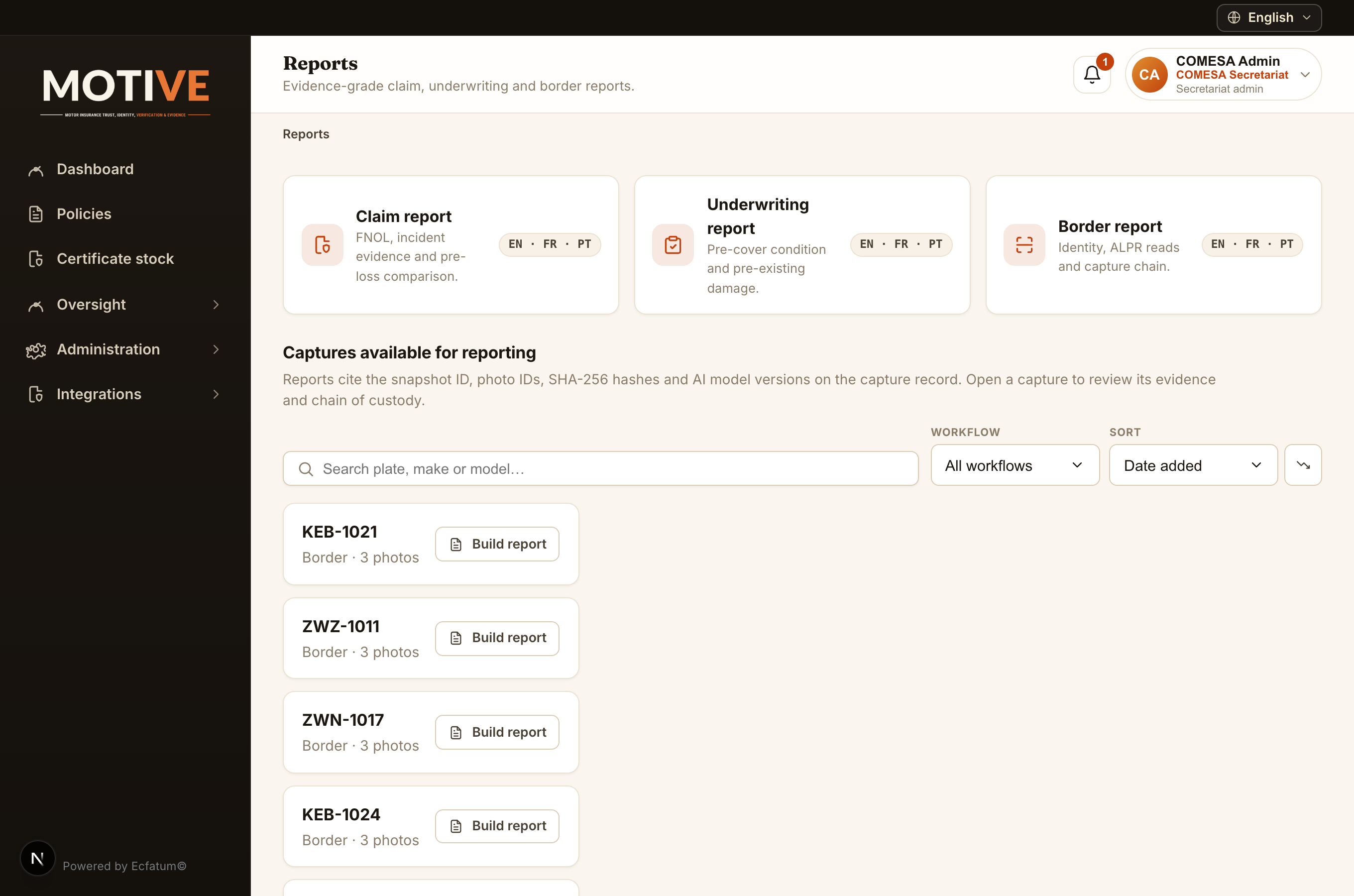
- Reports — filter by period, country and institution and export for board packs, regulators and reconciliation.
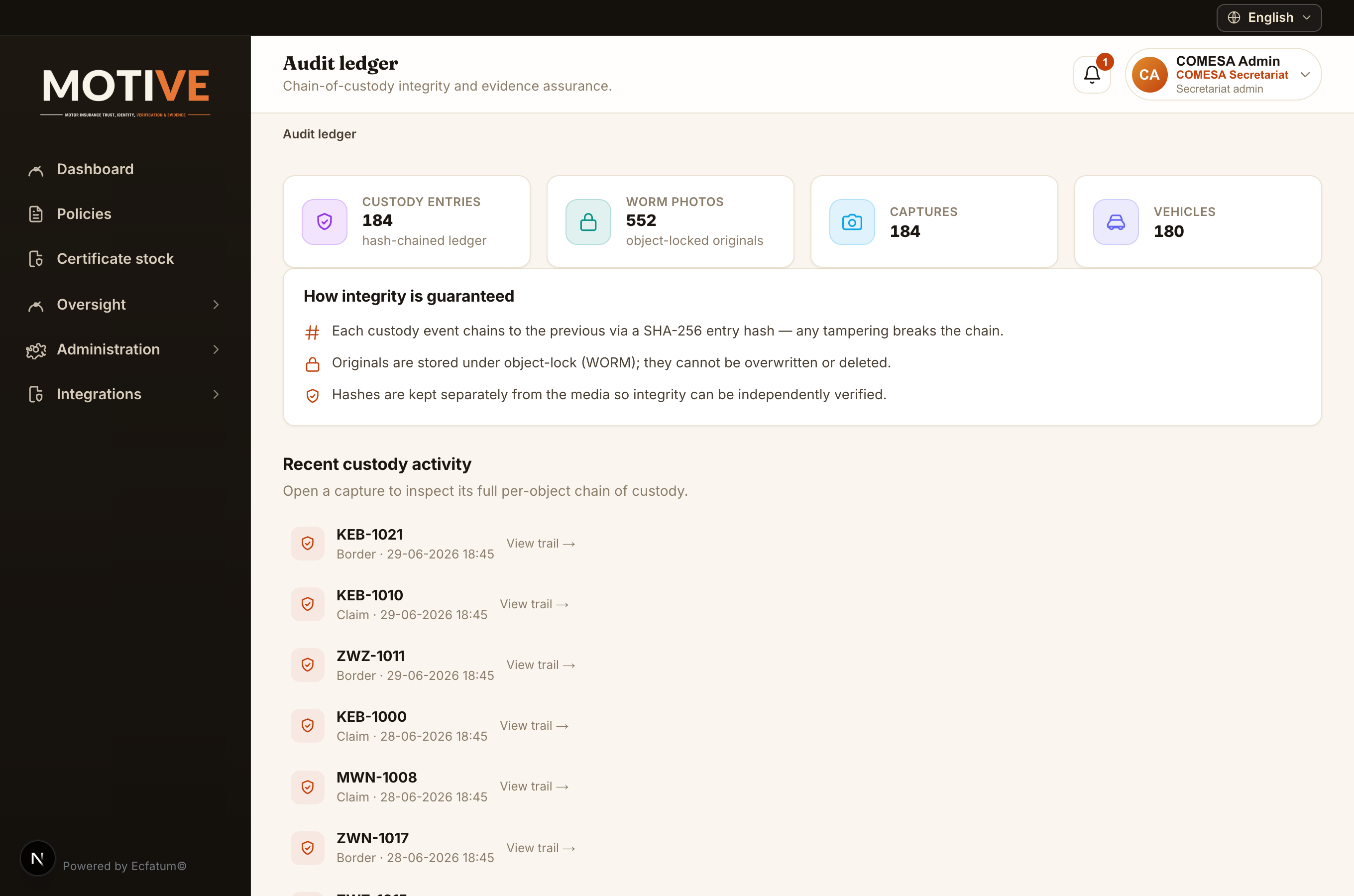
- Audit ledger — the hash-chained custody trail; auditors verify the chain and place legal holds to preserve evidence beyond normal retention.
- Audit log — the record of inbound integration requests and platform actions.
- On the Dashboard, set the date range to scope every figure to a period.
- Open Oversight to read the scheme totals and the per-member-state split.
- Open Reports, pick a report and export it (EN/FR/PT).
- To preserve evidence for an investigation, open the Audit ledger, find the capture and place a legal hold.
11. Integrations — connecting a register
Who: institution Admins and the Integration Developer.
A register — a secretariat, a commission or a regulator — connects directly to this platform and pushes the policies it has issued. There is nothing to relay between tiers and no member insurer to create first: each record names the insurance company itself.
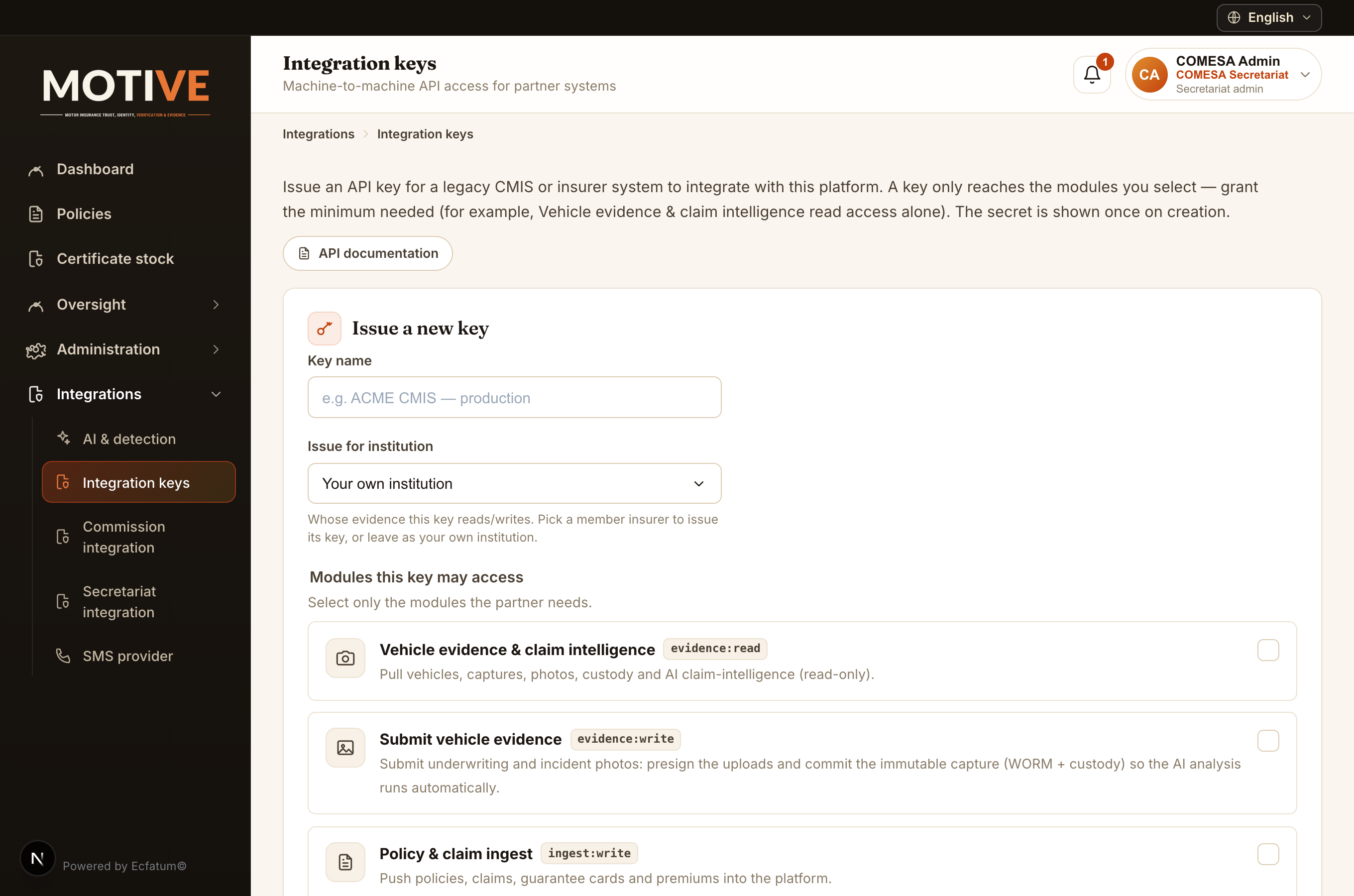
- Integration tokens (Integrations → Integration keys) — issue a token, scope it to what it may do, and revoke it when it is done. The token is shown once.
- What a policy carries — the policy number, the vehicle registration, and the insurance company: its name, its code, and the country code of the register it belongs to, which is what links the company to its bureau.
- Developer guide — the sequence to follow, endpoint by endpoint, with worked request and response bodies.
- API reference — the machine-readable specification, with every endpoint runnable from the page.
- Open Integrations → Integration keys and click Issue a new key.
- Name it after the register that will use it — the policy register shows that name as the source of every row it pushes.
- Tick only the scopes it needs — to push policies, Policy ingest (`ingest:write`).
- Save and copy the token now — it is shown only once.
- Follow the developer guide for the call sequence, and the API reference to try each endpoint.
An Integration Developer can do all of this without being an institution admin: the role carries token management, the ingest screens and the reads needed to check a push landed, and nothing else.
12. Evidence integrity & data isolation
The platform enforces evidence-grade guarantees you can rely on in disputes:
- Append-only / immutable — photos, metadata, AI output and decisions are never overwritten; corrections are new records and the original always survives.
- WORM storage — originals are written once and cannot be changed or deleted, with separate cryptographic and perceptual hashes.
- Hash-chained custody — each custody event links to the last, so any tampering is detectable.
- Tenant isolation — row-level security walls off each institution’s data; you see beneath you in the tree, never beside you.
13. Getting help
Start with the relevant section above. If a screen behaves unexpectedly, note the page and what you did, then contact your institution’s administrator or the platform operator. Account problems (locked out, lost two-factor device) are resolved by your own institution’s admin from Administration → Team.